Showing posts with label Windows 10. Show all posts

Sunday, October 23, 2016

If you are using Windows 10 desktop consider using File History

File History saves copies of your files and in case anything is lost or damaged, you can get them back. File History keeps copies of files from Libraries, Desktop, Contacts and Favorites.

How do you save files?

You will find File History in Control Panel's System and Security node as shown.


When you click on File History the following window opens.

 Filehistory2.png

You need to have an external storage media. In the above, I have 2 TB (Western Digital) hard drive connected to the USB drive.

If the drive has been removed for some time, I can always run and get the latest on to my external hard disc. I could also turn off. In the case of lost items I could go back to Control Panel and restore.

Tuesday, February 2, 2016

Get multiple desktops on your Window 10...

Did you know that you can have multiple desktops on your Windows 10 computer?

Well, each user can have multiple desktops on his/her computer screen in Windows 10. Follow these steps and create 2 desktops in each of which you group apps running on your computer.

By default you have just one desktop displaying folders and files.


However, you can add multiple desktops which you can access from Task Bar.

Click on Task View shown here:


+New Desktop opens far right as shown.


Click on +New Desktop to open a new desktop as shown.


Desktop has an open Notepad document and Desktop 2 has no open document.


Click on Desktop 2 and then open any App or application. That app appears in Desktop 2.

 You can create many desktops to group the apps you are running and getting to it quick from the taskbar.

Desktops created by one user is not accessible by other users.

You can personalize the desktop as shown. Desktop 2 has a different theme.


Friday, January 22, 2016

You own a Windows 10 laptop or tablet, then better find out how good your battery is...

In both cases you can get the information about your battery (especially if you want to replace it) using the power configuration command as in:
---------
C:\Users\powercfg /?
You get the help for power configuration as shown here:
------------
C:\Users\Jayaram>powercfg /?
POWERCFG /COMMAND [ARGUMENTS]
Description:
  Enables users to control power settings on a local system.
  For detailed command and option information, run "POWERCFG /? "
Command List:
  /LIST, /L          Lists all power schemes.
  /QUERY, /Q         Displays the contents of a power scheme.
  /CHANGE, /X        Modifies a setting value in the current power scheme.
  /CHANGENAME        Modifies the name and description of a power scheme.
  /DUPLICATESCHEME   Duplicates a power scheme.
  /DELETE, /D        Deletes a power scheme.
  /DELETESETTING     Deletes a power setting.
  /SETACTIVE, /S     Makes a power scheme active on the system.
  /GETACTIVESCHEME   Retrieves the currently active power scheme.
  /SETACVALUEINDEX   Sets the value associated with a power setting
                     while the system is powered by AC power.
  /SETDCVALUEINDEX   Sets the value associated with a power setting
                     while the system is powered by DC power.
  /IMPORT            Imports all power settings from a file.
  /EXPORT            Exports a power scheme to a file.
  /ALIASES           Displays all aliases and their corresponding GUIDs.
  /GETSECURITYDESCRIPTOR
                     Gets a security descriptor associated with a specified
                     power setting, power scheme, or action.
  /SETSECURITYDESCRIPTOR
                     Sets a security descriptor associated with a
                     power setting, power scheme, or action.
  /HIBERNATE, /H     Enables and disables the hibernate feature.
  /AVAILABLESLEEPSTATES, /A
                     Reports the sleep states available on the system.
  /DEVICEQUERY       Returns a list of devices that meet specified criteria.
  /DEVICEENABLEWAKE  Enables a device to wake the system from a sleep state.
  /DEVICEDISABLEWAKE Disables a device from waking the system from a sleep
                     state.
  /LASTWAKE          Reports information about what woke the system from the
                     last sleep transition.
  /WAKETIMERS        Enumerates active wake timers.
  /REQUESTS          Enumerates application and driver Power Requests.
  /REQUESTSOVERRIDE  Sets a Power Request override for a particular Process,
                     Service, or Driver.
  /ENERGY            Analyzes the system for common energy-efficiency and
                     battery life problems.
  /BATTERYREPORT     Generates a report of battery usage.
  /SLEEPSTUDY        Generates a diagnostic connected standby report.
  /SRUMUTIL          Dumps Energy Estimation data from System Resource Usage Monitor (SRUM).

-----
One of the arguments is 'batteryreport'.
Now if you type as shown here:
--
C:\Users\Jayaram>powercfg /batteryreport
Battery life report will get saved to C:\Users\Jayaram\battery-report.html.

Type as shown below, the HTML file will be launched in a browser.
C:\Users\Jayaram>battery-report.html
C:\Users\Jayaram>

Your battery report is saved to a html file.  This file is launched when you run the command, battery-report.html as above.
Here is the generated file (only partly shown):


These are the main sections in the report:

Battery details
Installed Batteries
Recent Usage
Battery Usage
Usage History
Battery Capacity History
Battery Life Estimates

It may be interesting to run this file once in 3 months and keep a record. When you are not using you can switch off (for long expected durations of inactivity), or let it sleep (for shorter durations of inactivity). Adjust your battery saver settings in Windows 10 Settings.


Saturday, November 28, 2015

Fixing the Window 10 tiles that disappeared

I start my laptop, Windows 10 (x32bit) and the programs are very slow. Internet connection is lousy, no matter what browser I use, the Edge, Firefox or the Chrome. Then to my utter dismay, I find that I do not see the Tiles although I see the Windows Icon and the Cortana. Unfortunately Cortana can only take you to a link. I cannot ask her to troubleshoot or repair. Right now I can only see the items that I get by right clicking the Windows Icon in the start position(extreme left).

Finally I searched and might have solved the problem (a trojan), perhaps it will work for you too, I hope. Follow this link here.

Monday, October 26, 2015

Apple gets a competing neighbor in New York, NY


 Image source: http://www.microsoft.com/en-us/store/locations/ny/new-york/fifth-avenue-/store-1087
Microsoft opened its 3-floor store for business in New York today. It's on 5th Avenue not far from Apple Store. This is the largest Microsoft Store. All the new stuff from Microsoft is being sold starting today.

New York is a great city with people from all over the world and Microsoft knows this and the shop associates speak and understand some 19 languages.

Here is a preview video:
===========


Video Source: Windows Central
More here: http://www.engadget.com/2015/10/25/microsoft-nyc-flagship-store/

http://www.usatoday.com/story/tech/2015/10/25/nyc-microsoft-store-launch/74579014/

Thursday, September 24, 2015

How long does it take to install Windows 10 on a tablet?

The tablet I have which has Windows 8.1 on it is the Toshiba Encore 2 WT-10A. It is a pretty good tablet and there is a brief review here.

I started installing Windows 10 by clicking the Windows icon (the Windows logo) in the notification area at the bottom of the screen. If you had registered before hand you would have this icon.

The installation started immediately by downloading the required files. This really took long on my Wi-Fi connection and finished after 1:30 hours. Then there was a chekcing phase after which the installation started.
You get a warning that the computer may restart several times during the installation. The installation took something like 45 minutes.

There were no error messages and it was smooth. After the installation an express setting was chosen and there was no need to do anything else. Most of the earlier apps were still there.

Windows 10 looks much better than the Windows 8.1 and Microsoft Edge (ME and not IE) looks nice with all its features. ME is not a browser supported by Google sites.

Here are some screen shots taken during installation with a camera.


Saturday, September 12, 2015

This one is a must have app on your computer with windows 10

I have been using Notepad for writing notes for a long time. I have neither been attracted to OneNote nor have I found Notepad 8 an attractive substitute for Notepad which remained as Notepad for all versions of Windows. Notepad 8 made its debut in Windows 8, but frankly it was quite bad.

Windows 10 comes, out-of-the box with a program called Windows Journal. This is quite a good one and its presence may not be quite obvious.

Click on All apps and scroll down to letter W. You can see Windows Journal after expanding Windows Accessories (3rd from bottom).


WJ_00

When you click this you will be greeted with a message. The message window is on top of the Windows Journal's default note, Note1 as shown.

WJ_01

You agree to install and click Yes. It might require permission and after which the driver is installed.

WJ_02

It is now ready to use. You can insert text (after clicking Insert | Textbox) and start typing in the box. You can format it anyway you want, size, font, color etc. You can insert an image from your computer or you can sketch out something with the minimalist drawing tools. Here is an example of what I did.

WJ_03

You can save it and it gets saved to the Notes folder as shown. Of course you can choose another location.
WJ-04

You an also send it over to someone by email as, a journal note (opened by Windows Journal of the receiver);a web page (,mht) that you cannot edit; or a black and white image(.tiff)

Do not forget to check out the Help menu item.

I think this is a cool tool since Notepad was lacking in some many features and MS Word had too many less used features.

Tuesday, September 8, 2015

So you want to watch Apple live event tomorrow

Tomorrow is when Apple unveils goodies for you all for which you have been eagerly waiting. The wait is finally over. The live streaming event starts tomorrow at 10 a.m. PDT.

Here is the requirements list to watch streaming live event  directly from Apple Site .

Requirements:
  • Live streaming uses Apple’s HTTP Live Streaming (HLS) technology. HLS requires an iPhone, iPad, or iPod touch with Safari on iOS 7.0 or later
  • a Mac with Safari 6.0.5 or later on OS X v10.8.5 or later, or
  • a PC with Microsoft Edge on Windows 10.
  • Streaming via Apple TV requires a second- or third-generation Apple TV with software 6.2 or later.

Tuesday, September 1, 2015

Take these steps to print to your Canon printer using Windows 10

Printing is important although most of us have gone peperless. Printing via Wi-Fi is even more important as you do not print to a printer on a ethernet cable.

Ok. Now to the steps:
Can you print to your Canon MX 430 printer from your computer upgraded to Windows 10?
If the answer is yes, you need read no further. You are OK.

If not you may get this error message, even if your printer appears in the devices list.
PrinterProblem.png

This generally means there is a 'driver' problem. Your previous operating system(OS) had a set of files that are no longer compatible with Windows 10. You need to download 'drivers'.

The driver you need is available here:
http://www.usa.canon.com/cusa/support/consumer/printers_multifunction/pixma_mx_series/pixma_mx432#DriversAndSoftware

As you notice, if you have a different Canon printer you can find them as well. You need Model name that you find on the body of your printer to get the correct driver.

Download and run the program. During this process your printer should be ON and connected to your printer with a USB cable.

You will find more details here:
http://hodentekhelp.blogspot.com/2015/08/how-do-i-make-my-canon-mx430-printer.html

Tuesday, August 25, 2015

With Windows 10 you really should use this coolest feature

 You are an online shopper and you want to get opinions about what you want to buy with your family/friends and what is the best way. Hand him or her a screen shot with some scribblings. No!
You send him/her an annotate web page with images and all the (gory) details.

This is one of the coolest features of Microsoft Edge, Microsoft's latest browser (no relative of Internet Explorer).  You can write on your web page or add annotation and send it to your friend(s). Here is the Windows 10 version of Microsoft Edge used for this post.


Medge01.png

Let us say you found something useful and you want to add some annotation, or simply you want to highlight just one item from a bunch of stuff and want your friend to buy it for you as you are rushed. You just highlight that item right on the browser and share it with your friend in a couple of different ways.

We just take this example of sharing some selection you made that you want your friend to look at.

Here is the page you were looking at:


Medge02.png


Now you want to highlight your selection. The following assumes you have a Windows 10 operating system on your computer. Click on the icon under the red square. When you place your mouse tip on it you see text that says 'Make a web page".


Medge04.png

When you click on the icon, the page changes to this.

Medge05.png

Now we are in the editing mode and from top left to right we have some tools. They are, Pan (like scrolling), Pen, a highlighter with yellow tip(you can pick color and size), eraser, 'Add a typed note' item; and clip. On the right you have Save web Note (floppy disc icon), Share and 'Exit'. Presently these are supported and perhaps more may be added in future.

Now let us highlight one of the shoes. Click on the highlighter tool (which is next to the pen' and then with your mouse highlight one of the shoes by dragging your mouse tip around it (can be more than one) as shown.


Medge06.png

Now click on the 'Add a note' icon to the left of clip. A box opens and you can position it by dragging it and type into it as shown.


Medge07.png

Now you want to send it to your friend. Click on the Share on the right mentioned earlier. The share choices open as shown.


Medge08.png

Click on Mail and the next window opens (actually that is the only way I share). Here you will have to setup your email options.


Medge09.png

When I hit Get started, it brings up my Windows mail at live.com as shown. You can add other accounts if you want like gmail, etc.


Medge10

Sure enough the mail can be sent.


 Medge11.png

The mail can be retrieved.

Medge12.png

Well. What are some problems that I encountered?


  • I am documenting the steps to help readers and going back and forth to get the correct screen shot can mess up with the natural flow of a program. However, while trying to share information the edited page may loose some information. 
  • Going from editing stage to sharing stage should retain edited information  no matter how many times I go between the browser and the Share settingss.
  • The image that is sent appears to be the whole web page rather than the one in the images shown. Perhaps, this is my bad. One may need to clip further so that only a short message is sent.
  • There must be more Share choices, perhaps there will be a way to add choices in the future.
  • Page hangs with the message, Not responding (the most hated feature).
But this is a great improvement. I think DHTML has come to some maturity.


Friday, July 31, 2015

Jump start installing Windows 10

It is time to update your older Windows operating system to the most recent. You can jump start your updating getting to know all the details.

Depending on your present status you can update right away to within a couple of days. This post will help those who are updating from Windows 7 or Windows 8. In the case of Windows 7 you should have applied SP1 and in the case of Windows 8 you should have the 8.1 update. Windows 7 users should update as described here.

This one is one is official from Microsoft:
"The free upgrade to Windows 10 is being made available in stages. You might not be able to get it yet, but if your PC is qualified, you will be able to soon. You get the free upgrade to Windows 10 by reserving it through the Get Windows 10 app. This app is already installed on many qualified PCs. Look for the Windows icon on the far-right side of your taskbar to see if you have the app. Select it to get started."

This post shows how to get the 'Get Windows app' and many other details.

You also will have to know the license key for the existing operating system on your laptop/desktop. You may not need just to download the software.

Windows 10 insiders can access this page from here:
https://insider.windows.com/Home/Index

I accessed this page (I am an insider).
 Probably even if you are not an insider it could work.

The following page is displayed at this URL:
http://www.microsoft.com/en-us/software-download/windows10

Windows10_01

You can download a x32bit or a x64 bit version.

Since you will be creating your own installation media (using a USB drive or a DVD with a burner, make sure you have Internet connection.

You need a blank DVD or a blank USB storage device (with at least 3 GB free space) as data will be ove written.
You have to no the System Requirements (http://www.microsoft.com/en-us/windows/windows-10-specifications):

Basically the minimum requirements are:

  • Processor:

1 gigahertz (GHz) or faster processor or SoC
  • RAM
1 gigabyte (GB) for 32-bit or 2 GB for 64-bit
  • Hard disk space:

16 GB for 32-bit OS 20 GB for 64-bit OS
  • Graphics card:
DirectX 9 or later with WDDM 1.0 driver
  • Display:
    800x600
You if you are running either Windows 7 SP1 or Windows 8.1 update, Kindly read the requirements page as there are other upgradability feaatures needed.
Get Windows 10 app and check if your computer OS meets the requirements.
Get Windows 10 app link on your computer is here at the bottom of screen:

GetWindows10 app
 
Click on the icon to display a web page with radio buttons at the bottom
 
GetWindows 10 app02

 Download link is here:
http://www.microsoft.com/en-us/software-download/windows10

Clicking Download button for the chosen architecture brings up the following wizard.


MediaContentDevice

Double clicking the above displays the Wizard whose steps are shown here.

Upgrade01

Looks like you can upgrade without creating media. However I have two more laptops, a tablet and two phones, I decided to create a media. Click Next to display the following:


Upgrade02

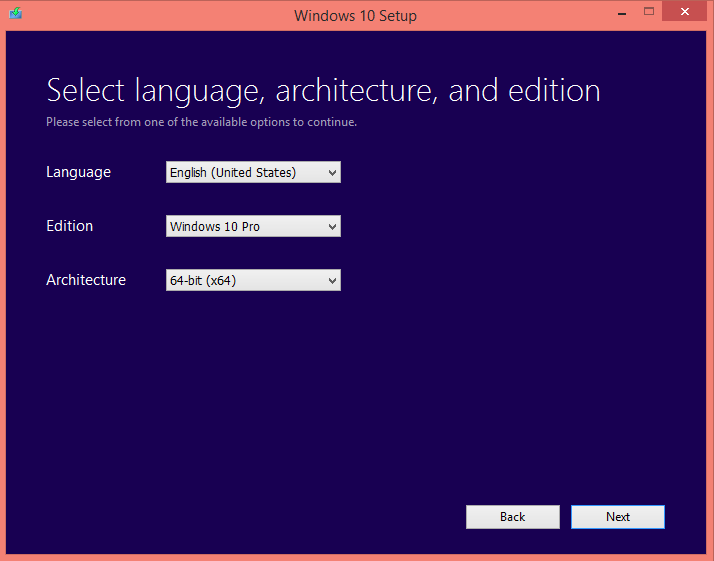
I entered the details for my present laptop, I may need to get x32 version later for one of x32 bit laptops. This one is a Professional OS, x64 bit.

Click Next to display the following:


Upgrade03

I used a Kingston 8GB USB external drive.

Click Next.


Upgrade04

Clicking Next starts downloading the file to the USB Drive.

These are the contents of the USB drive. It took nearly  3 hours and 20 minutes to download.

Win10Contents

The properties of the setup file displays the following:


SetupProps

Continued...

Monday, July 20, 2015

Get started bonding with Windows 10

Windows 10 is a bondable operating system. You can interact with the OS: create and share stuff in incredible ways; where learning is mutual and your web experience with Microsoft edge browser one of its kind.

"Now you can have the web you’ve always wanted. Write, type or even use your fingertips2 to draw directly on pages and then share with others. Read your content free of distractions.
"
You have already used Windows 7 and Windows 8. OK, that will all add to your total experience, there is a continuity but also you can fresh start.

Here is a video just a few days before release.


Here is the Microsoft stuff in small print in large print;
"
Windows Offer Details- Yes, free! This upgrade offer is for a full version of Windows 10, not a trial. 3GB download required; standard data rates apply. To take advantage of this free offer, you must upgrade to Windows 10 within one year of availability. Once you upgrade, you have Windows 10 for free on that device. Windows 10 Upgrade Offer is valid for qualified Windows 7 and Windows 8.1 devices, including devices you already own. Some hardware/software requirements apply and feature availability may vary by device and market. The availability of Windows 10 upgrade for Windows Phone 8.1 devices may vary by OEM, mobile operator or carrier. Devices must be connected to the internet and have Windows Update enabled. Windows 7 SP1 and Windows 8.1 Update required. Some editions are excluded: Windows 7 Enterprise, Windows 8/8.1 Enterprise, and Windows RT/RT 8.1. Active Software Assurance customers in volume licensing have the benefit to upgrade to Windows 10 enterprise offerings outside of this offer. To check for compatibility and other important installation information, visit your device manufacturer’s website and the Windows 10 Specifications page. Additional requirements may apply over time for updates. Security and features are kept automatically up-to-date which is always enabled. See the Windows 10 How to Upgrade page for details.
"
 

Wednesday, July 15, 2015

The best Windows Phone : Nokia Icon

InfoWorld writes about the only 5 smartphones that matter and includes the following:
  • Apple iPhone 6 and 6+
  • Samsung Galaxy S6 and Galaxy S6 Edge
  • Samsung Galaxy Note 4 (it's a Phablet)
  • LG G4 (Android)
  • Microsoft Lumia 830
However there is hardly a mention of Nokia Icon. This Verizon specific phone (Nokia Icon) is probably not sold anymore as Verizon has a new Windows Phone.

The bottom line: Nokia Icon is better than Lumia 830

 I will stay with Nokia Icon. The only worry is what happens if the battery goes bad.
AT & T appears to be carrier for Nokia 830.

Although most Tablets, PCs, Laptops  will be updated to Windows 10 OS, not Windows Phone. It may come much, much later.

Sunday, July 12, 2015

Nokia Lumia 735 is out, do you want it?


Verizon recently gave its Windows Phone users the option to swap their Nokia Lumia Icon to Nokia Lumia 735. It does not look like an upgrade to me at all. I went out to Microsoft Store in Ala Moana take a look at it. I was fairly disappointed and one of the store staff told me Nokia Icon is a much better smart phone than the 735.

The other piece of information (I do not know it is true or not) he gave me was it was a Verizon specific phone. If this is tru I would avoid it as Verizon does not provide proper support, like asnweering customer's questions. It took almost a year after talking to Verizon to ge the Windows Phone OS to upgrade to 8.1. Probably the upgrade of 735 from Windows Phone 8.1 to Windows 10 is less stressful.

I am not sure what features are important for you but there are 41 reasons why Nokia Icon is better than Nokia Lumia 735 but only 13 reasons why Nokia 735 is better than Nokia Icon.

Looks like the capability to replace battery and be able to use an external memory appears good reasons, but with cloud service available to store this capability is not compelling.
On the whole, I would rather stay with the Nokia Icon as it takes great pictures and videos with a view area much larger than the 735. 

Friday, November 7, 2014

Microsoft and its graphic designs

#It appears that Microsoft gave away some free stuff (wall papers) in return for the early testing of its Windows 10 OS. I caught some images (I am showing one of three) from the below site here.

http://betanews.com/2014/11/07/microsoft-thanks-windows-10-preview-testers-with-three-very-little-surprises/


I do not think they are cool. They are OK or so so.

As one comment (mshulman) on the above site says the following:

"Those are pretty bad. At first glance I thought this was going to be just about how giving wallpaper images away was bad and I don't think that giving free wall paper images is bad, but giving away really bad wall paper just plain sucks.
In this case, I think they would have been better off just not giving away anything.
"

#Microsoft is releasing its newly named smartphones, the Microsoft lumia within the next week. Microsoft released the below shown promotional image. Don't you think they could have done it better for an event like a name change?